
Pushing a Judge or Parliamentarian to zz-bye
Sometimes a judge or parliamentarian can't make it and nobody is free to cover. The Change Judges page lets you move that assignment to the zz-bye judge. The slot stays open, with no named judge, until you fill it. This works for regular judge assignments and for Congress parliamentarians.
When to use it
- A judge or parliamentarian drops out or doesn't show up, and no one is available to replace them.
- You need to free someone up to judge somewhere else.
- A Congress chamber will run without a parliamentarian this round.
If a section has more judges than it needs and you'd rather remove the extra slot than leave it on zz-bye, see Deleting a Judge Assignment.
Where to find it
Go to Admin > Pair/Section > Change Judges.
Step 1: Load the round
Type a ballot code under 1. Enter Ballot Code and click Load, or click a schedule block in the or select list to see every assignment in that block.
Step 2: Pick the judge or parliamentarian
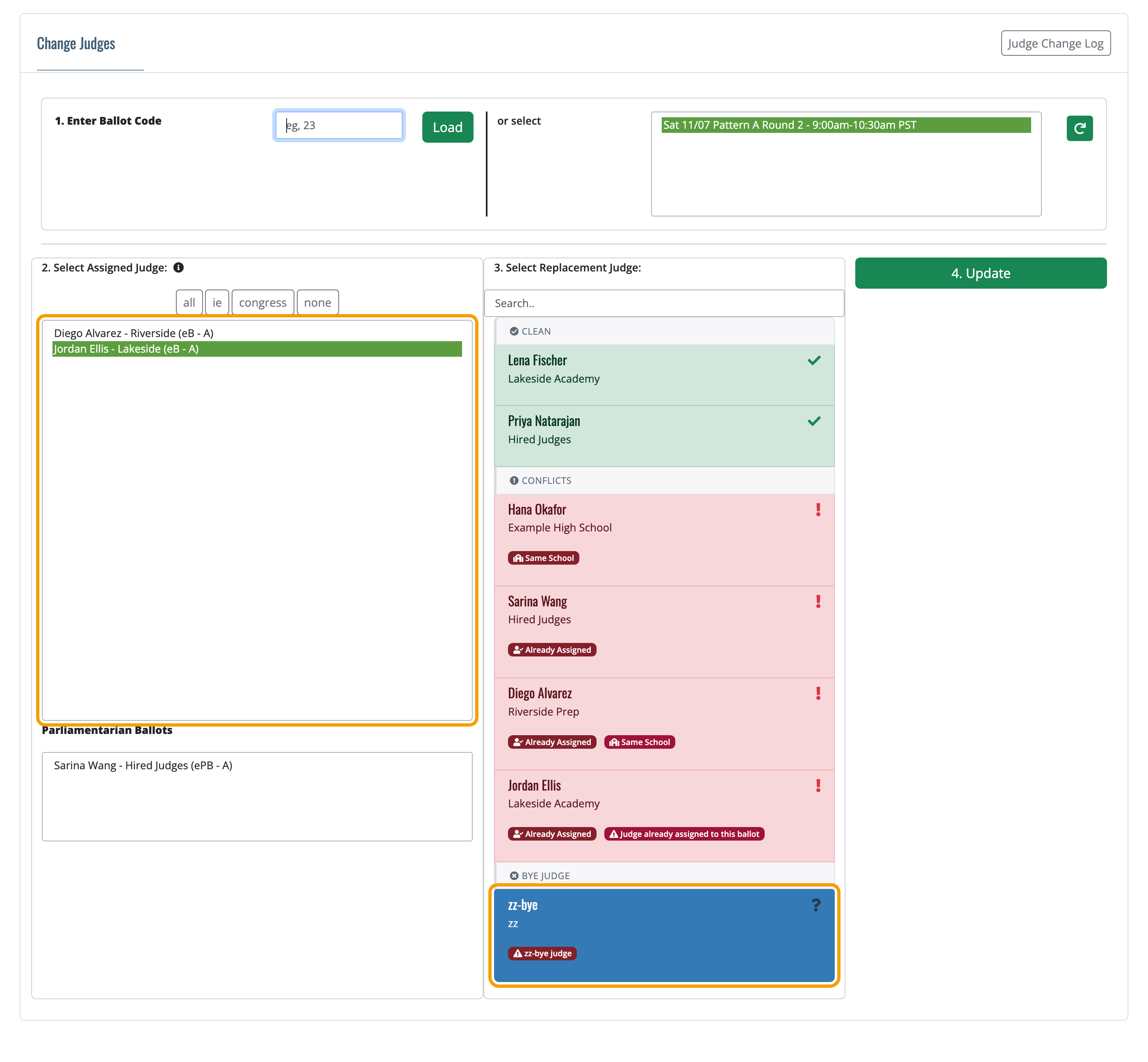
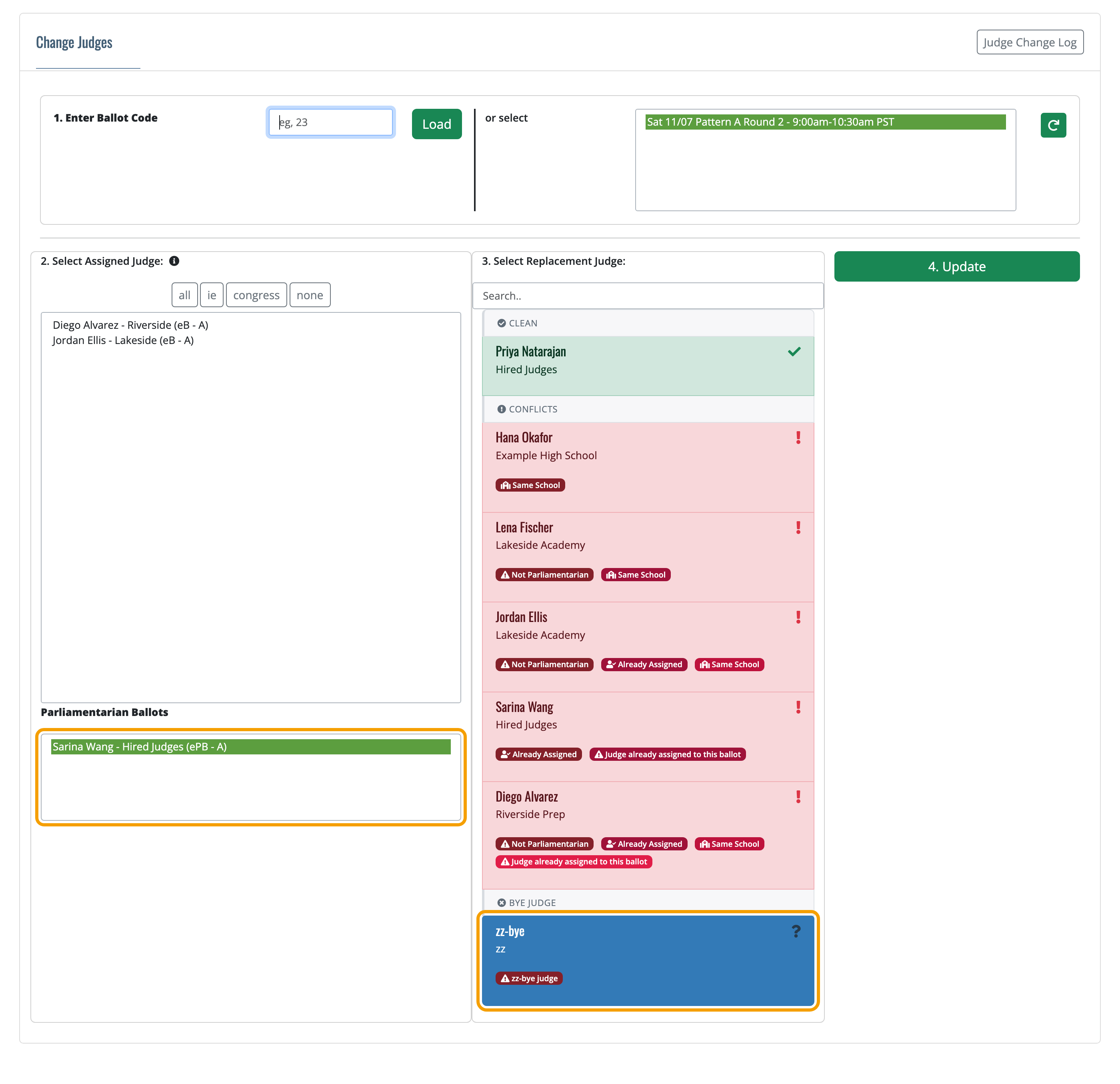
Under 2. Select Assigned Judge, click the person you're replacing:
- Regular judges are in the top list.
- Parliamentarians are in the Parliamentarian Ballots list underneath it. This list only appears if your tournament has Congress.
Hover over a name to see the event, ballot code and section. The buttons above the list (all, ie, congress and so on) narrow it down by event type.
Step 3: Choose zz-bye
The 3. Select Replacement Judge list fills in. Scroll to the bottom and click zz-bye under Bye Judge. It turns blue when it's selected. You can also type bye in the Search box to jump straight to it.
Regular judge:
Parliamentarian:
Step 4: Click Update
Click 4. Update. A green message at the top of the page confirms the change:

The slot now shows ZZZ-Bye in the assigned list.
What happens to eBallots
- If the judge or parliamentarian had an eBallot and hadn't submitted it yet, it is removed and FTN lets them know their ballot was moved.
- If they had already submitted results, those results stay with the ballot.
- Nothing is sent to zz-bye, and there is no paper ballot to print for it.
Checking the change log
Click Judge Change Log at the top right of the page. Each change is listed with the original judge, the new judge (shown as ZZ-BYE), the time, and who made it.

Putting a real judge back
Follow the same steps. In Step 2, select the ZZZ-Bye entry. In Step 3, pick the judge you want, then click 4. Update.
Note: FTN doesn't send an eBallot automatically when you replace zz-bye with a real judge. Send their eBallot from Admin > Pair/Section > Ballots (see Printing Paper Ballots or Sending eBallots), or give them a paper ballot.