
Entry Notes
Entry Notes lets coaches add a short note to each of their entries during registration. You can then see every note in one report.
A common use is novice eligibility. If your tournament has no separate novice division but still recognizes the top novice competitor, coaches can mark which entries are novice-eligible. Notes are per entry, not per competitor, so a student can be marked novice-eligible in one event and not in another.
Turn on Entry Notes
Entry Notes is off by default. To use this feature you need to first enable it
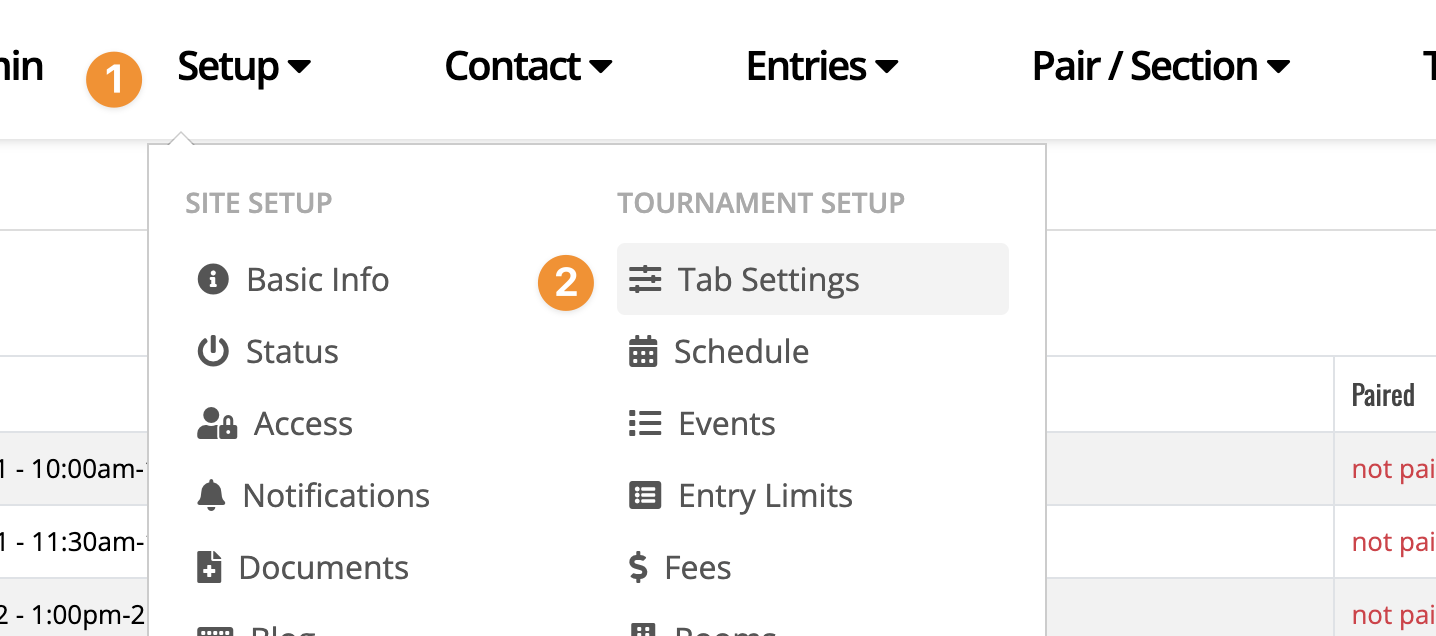
- Go to Setup->Tab Settings->Tournament Settings->Registration
- You can also type "Entry Notes" into the settings search.
- Check Entry Notes and click Update.
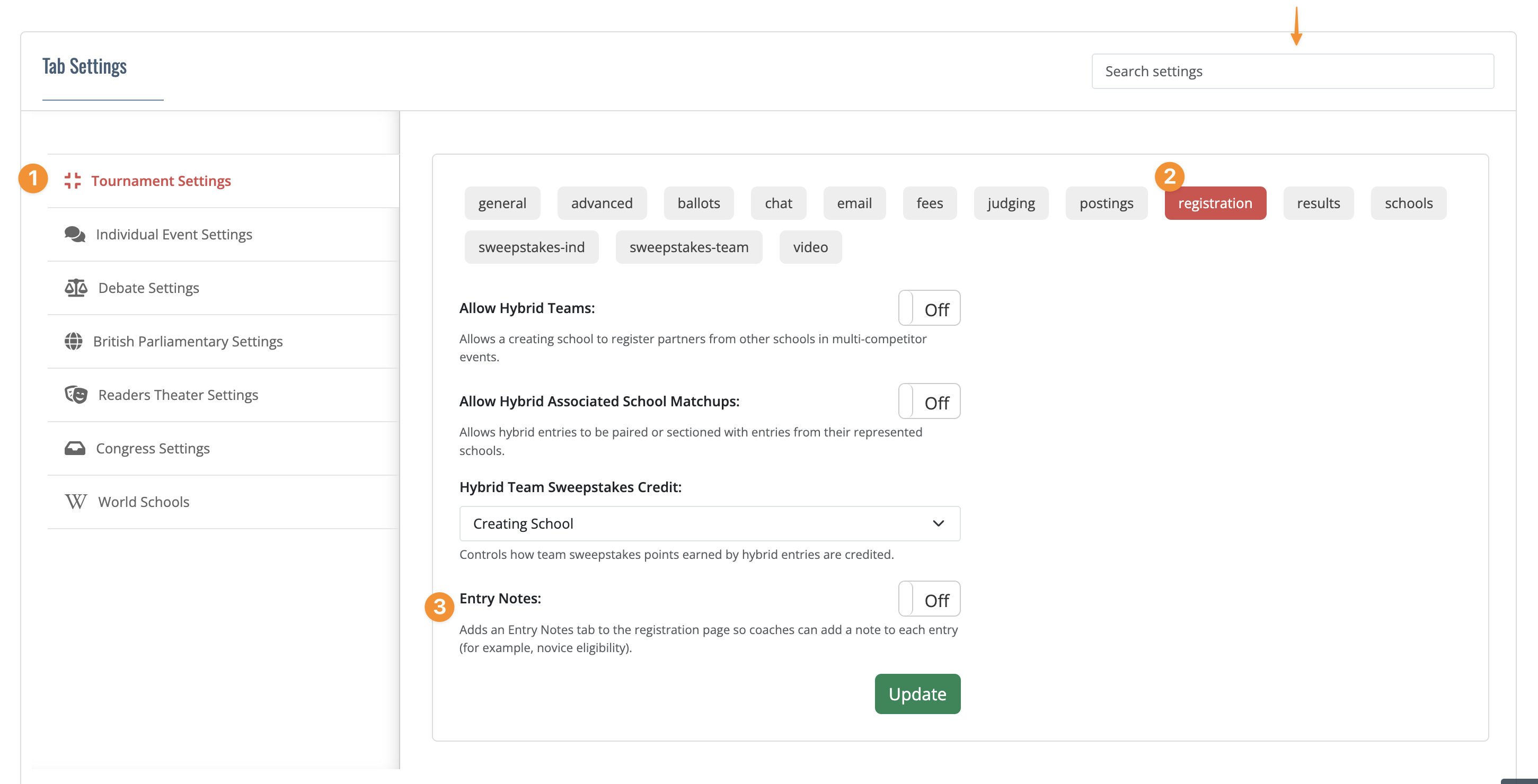
Coaches will now see an Entry Notes tab on the tournament registration page, with a text box next to each of their entries.
Tell coaches what to write
The Entry Notes tab tells coaches to add any notes the tournament has asked for, but it doesn't say what those are. Put your instructions in your invitation or an email to coaches. For example: "On the Entry Notes tab, type Novice next to any entry that is novice-eligible."
Asking everyone to use the same wording makes the report easier to scan and sort.
View the report
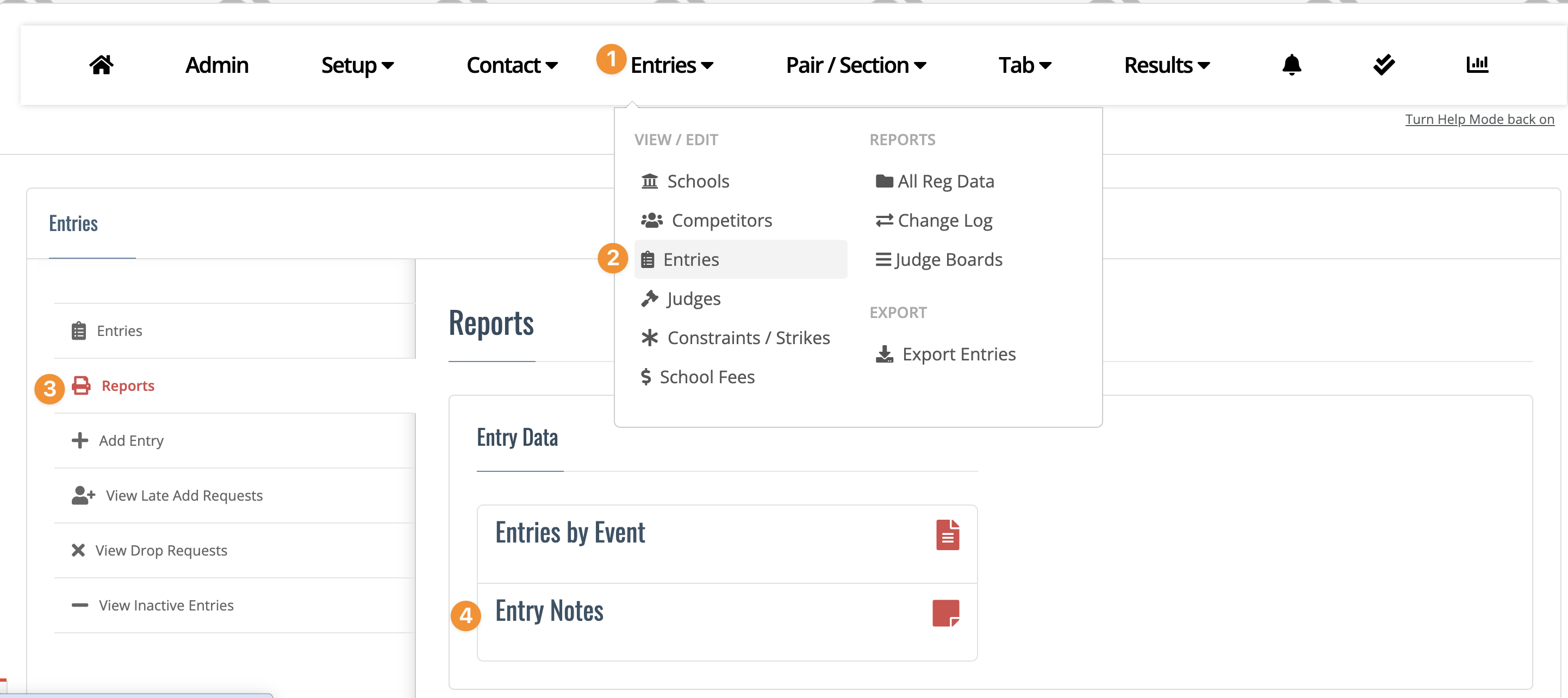
- Go to Entries->Entries->Reports.
- Under Entry Data, click Entry Notes.
The report lists every entry that has a note, with its event, school, competitor(s) and note. Entries are sorted by event and then by school. Entries without a note aren't shown.
- Use the Search box to filter the list, for example by event name or by a word like "novice".
- Click any column heading to sort by that column.
Here is the sample report:
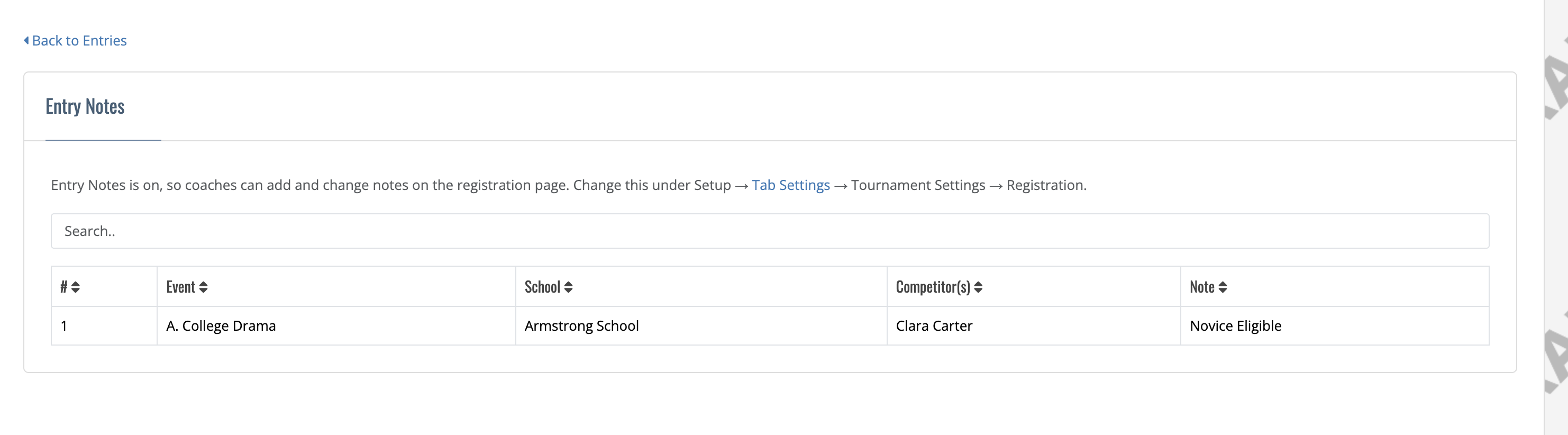
The top of the report says whether Entry Notes is currently on or off, so you can tell at a glance whether coaches can still make changes.
Editing Entry Notes
If you need as tournament staff to edit an entry note (perhaps a coach entered novice eligibility incorrectly), you can do so on the edit entry page.
- Go to Entries->Entries
- Pick the event and then click on the entry
- You'll see the entry note box to edit. Click Update
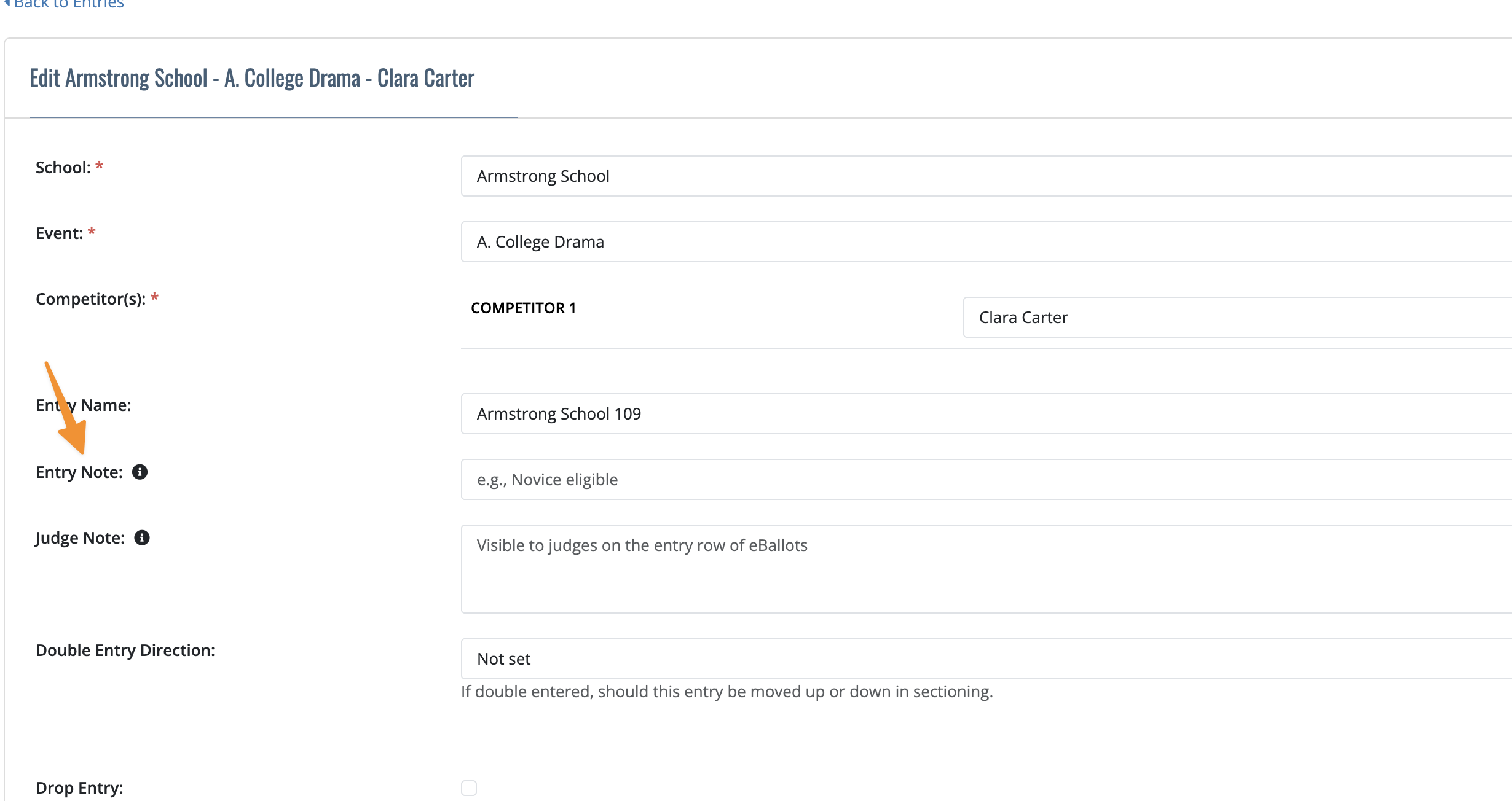
Note that entry notes are only visible to tournament staff on the report and coaches during registration. They do not show up on eBallots or postings.
You should use the 'Judge Note' box if there is something you need to communicate to a judge about the entry.
Stop coaches from making changes
When you're ready to lock the notes (for example, before you calculate awards), turn Entry Notes off:
- Go back to Setup->Tab Settings->Tournament Settings->Registration
- Uncheck Entry Notes and click Update.
The Entry Notes tab disappears from the registration page, and coaches can no longer add or change notes. Nothing is deleted. The report is always available under Entries->Entries->Reports and still shows every note that was saved. If you turn Entry Notes back on, coaches can edit their notes again.