
Dropping A School
Tournament staff can drop all active competitor entries and judge entries for a school from one place.
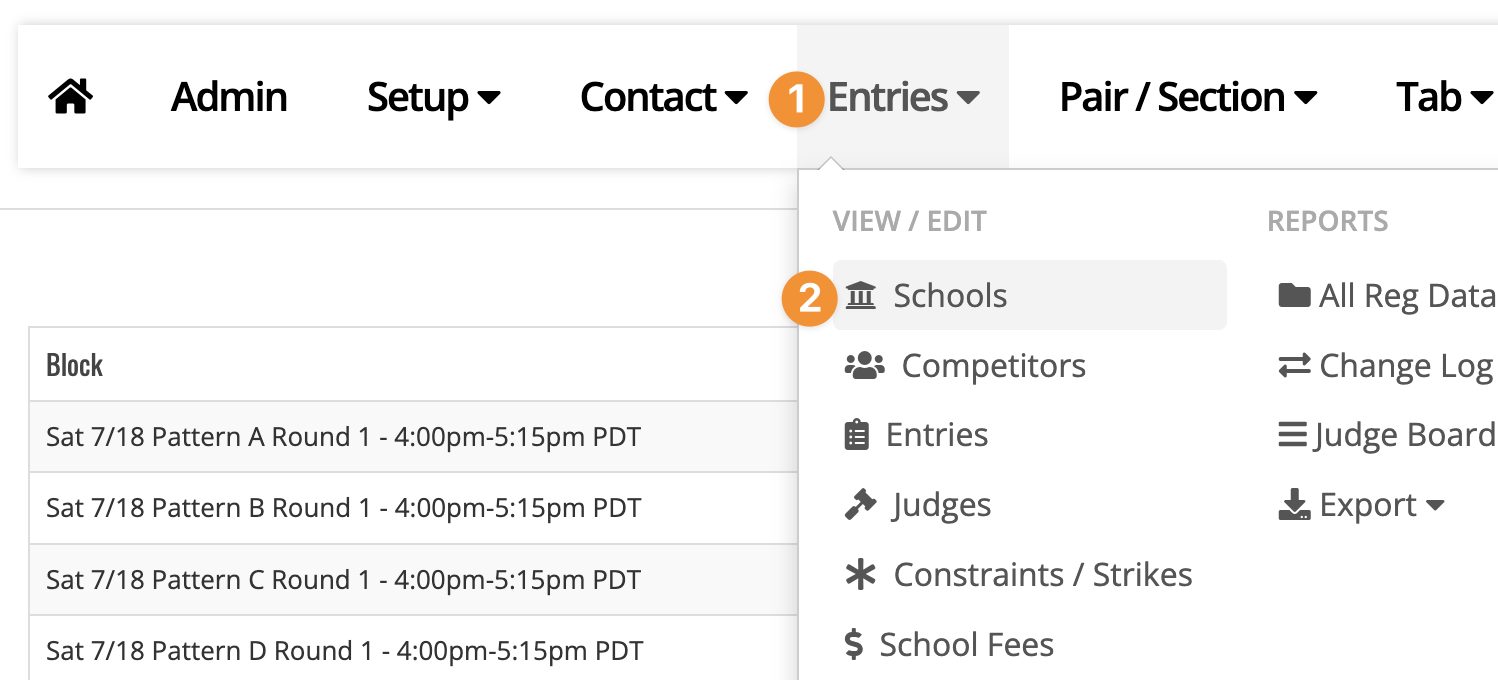
Go to Admin -> Entries -> Schools, then click the school name. In the top right of the school page, click Drop this school.
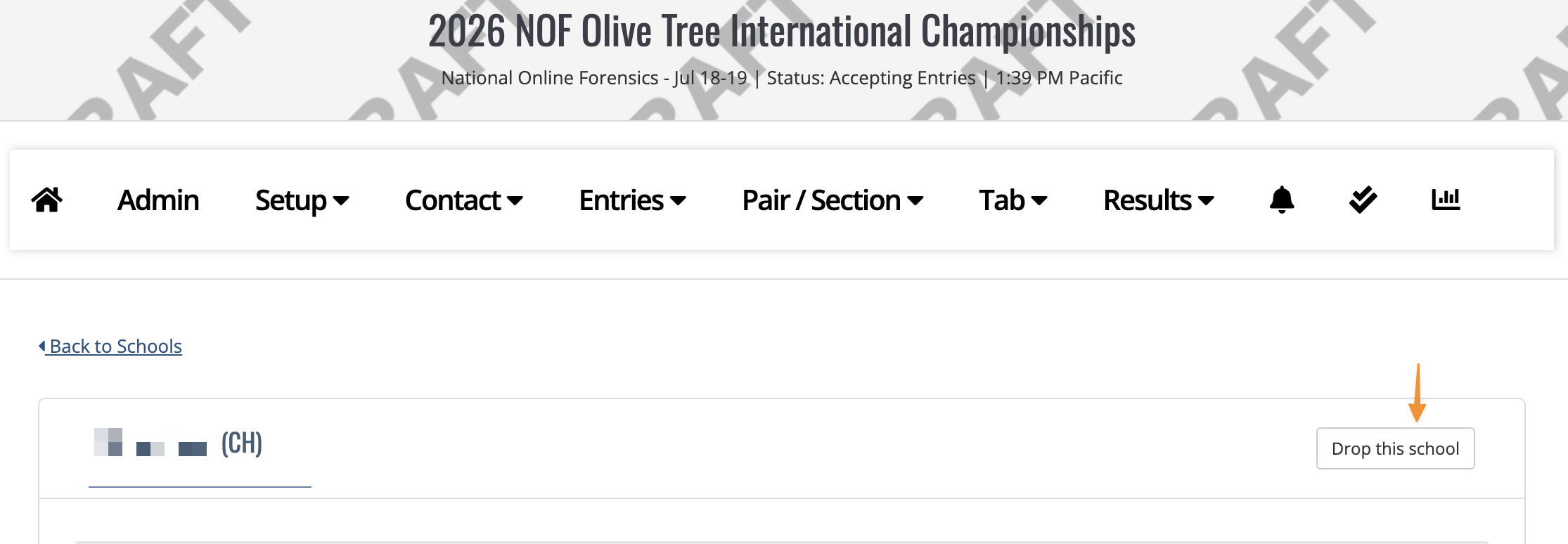
You will be taken to a confirmation page before anything is dropped. The confirmation page shows how many competitor entries and judge entries will be dropped. If the school has already been pair/sectioned, the page will also warn you that competitor entries will be removed from debates/sections and judge entries will be replaced with zz-bye judge.
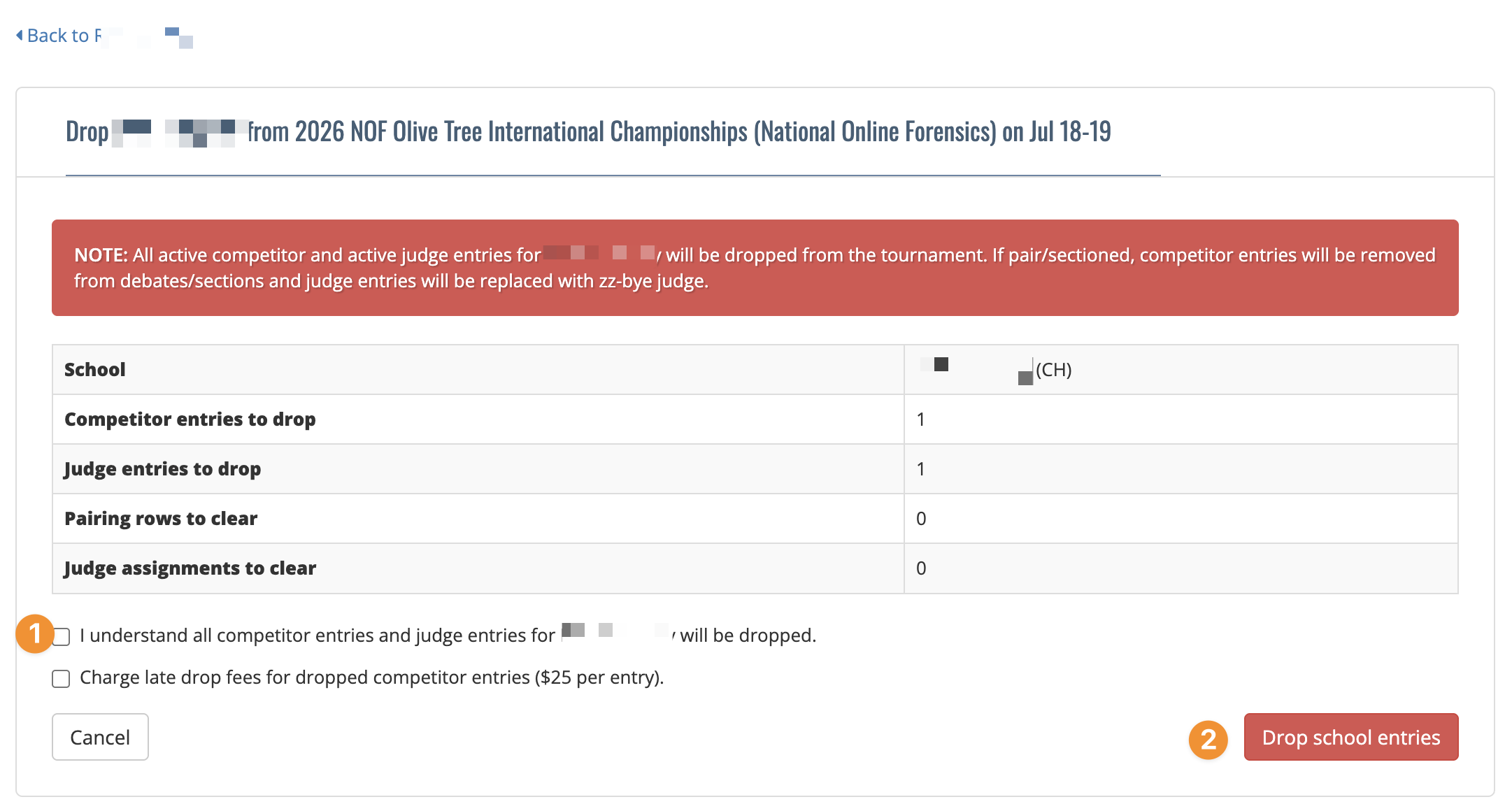
Before confirming, review the available options:
- Late drop fees: If your tournament uses late drop fees, you may choose whether to charge late drop fees for the dropped competitor entries.
- Frozen fee sheets: If fee sheets are frozen, you may choose whether to remove the school from the frozen fee sheets. This option is checked by default. Uncheck it if you still want the school to remain on the frozen fee sheet, such as when drops happen after your fee deadline.
When you confirm, the system will:
- Drop all active competitor entries for the school.
- Drop all active judge entries for the school.
- Remove pair/sectioned competitor entries from their debates or sections.
- Replace assigned judge entries with zz-bye judge.
- Keep historical ballots and results.
- Add an audit log entry.
- Send one notification to the school’s tournament coach contacts letting them know the school was dropped.
NOTE: Only staff with access to both Admin -> Entries -> Entries and Admin -> Entries -> Judges can use this tool. If you do not have access, the button will be disabled.